When you work on several projects, it is easy to lose track of how much time each one actually takes. You may know that you were busy, but not whether the time went to planning, delivery, meetings, revisions, or work that was never included in the estimate.
Google Calendar can be a simple place to record project time. If each work block includes a project name and task type, your calendar becomes a record of actual effort that you can review later.
This guide explains how to use Google Calendar for project time tracking, how to name events for meaningful analysis, and how Kotomil can help visualize time by project and task type.
What Is Project Time Tracking?
Project time tracking means recording how much time is spent on a project and on the tasks within it. The goal is not only to count hours. It is to compare planned effort with actual effort and improve future estimates, pricing, and ways of working.
When you track project time in Google Calendar, you can review:
Total time spent on each project
Time spent on planning, production, development, review, meetings, and revisions
Billable time compared with non-billable support work
The gap between estimated time and actual time
This is particularly useful for fixed-price projects. A record of actual effort lets you look back at similar work and make the next estimate more realistic.
Set Up Google Calendar Event Names for Projects
For useful project time tracking, an event name should make both the project and the type of task clear. A practical format is Project | Task Type | Description.
Project A | Planning | Create page structure
Project A | Development | Build search feature
Project A | Meeting | Weekly check-in
Project B | Production | Create banner
Internal | Sales | Write proposal
You can use a different separator or wording. What matters is keeping the order consistent. With this structure, you can later review all events for Project A or all events related to Development.
Record Actual Project Time
A planned schedule is not necessarily an actual-time record. After the work is done, check the event time and description, then update them if the work unfolded differently.
Create an event with the project name and task type before you begin.
Afterward, adjust the start and end time to reflect the actual work.
Split the event if you switch to another project.
Add unexpected work, such as a support request or extra revision, as its own event.
You do not need to account for every minute. It is more important not to combine different projects in one event. Separating them makes the project totals useful when you review your work later.
Separate Billable and Non-Billable Time
Project profitability is easier to understand when you can distinguish delivery work from time that supports the work but is not billed. Add “Billable” or “Non-billable” to the event name when that distinction matters.
Project A | Billable | Development
Project A | Non-billable | Requirements clarification
Internal | Non-billable | Sales outreach
Internal | Non-billable | Accounting
Non-billable time is not automatically wasted time. Sales, planning, admin, and learning may all be necessary. Recording them helps you see the full cost of serving a project and decide whether estimates or processes need to change.
Review Time by Project and Task Type
Review your project time weekly or monthly. Start with total hours by project, then look at the task types within a project that took more time than expected.
Questions to ask by project
How did actual time compare with the estimate?
Did meetings, support, or revisions grow beyond what was expected?
How much time was billable, and how much was non-billable?
What should change in the next estimate or project plan?
Questions to ask by task type
Did insufficient planning create more rework later?
Is review or revision time unusually high?
Are meetings reducing time for production or development?
Can repeated tasks be documented, batched, automated, or delegated?
Looking at the data this way turns “this project felt difficult” into a more actionable understanding of where time went.
Aggregate Google Calendar time by client
If one client has several projects, extend the event format to Client | Project | Task Type.
Client A | Website Refresh | Research
Client A | Website Refresh | Development
Client A | Support Retainer | Weekly Meeting
Client B | Content | Writing
Filtering for “Client A” shows the total relationship workload, while “Website Refresh” isolates one project. Keep the client name consistent rather than alternating between a company name, abbreviation, and contact name.
Questions for a client-level review
How many hours do all projects for this client require each month?
Are meetings, messages, and shared support increasing?
Is the total client fee still appropriate for the actual workload?
Are changing priorities creating rework across projects?
Once your project and task labels are consistent, place the actual totals beside the estimate. Compare planning, production, review, revisions, and communication separately—not only the project total. That reveals where the original assumptions were wrong.
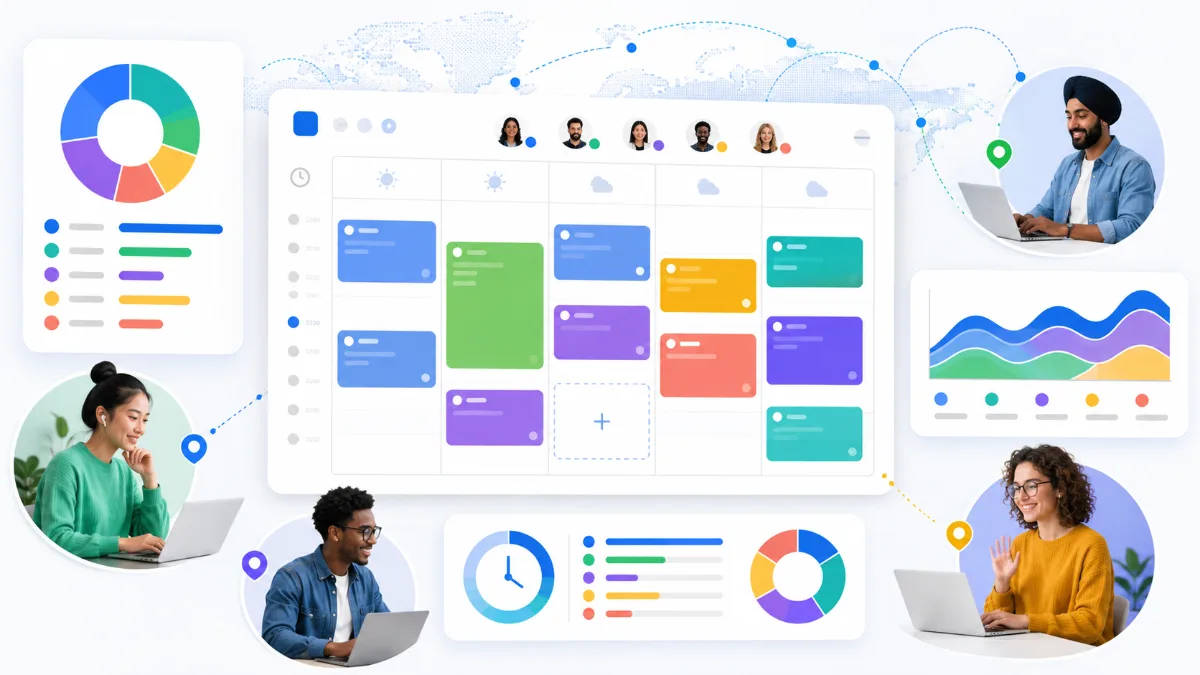
Manual project totals become harder as the number of events and projects grows. Kotomil connects with Google Calendar and can aggregate events over a selected period, showing time allocation and keyword-based trends.
Use the shared words in your event names to examine the perspective you need:
Use the project name to review actual effort by project
Use task-type words to compare planning, development, production, and meetings
Use Billable and Non-billable to understand time that is not directly charged
Review monthly trends to understand changes in workload and project mix
Important Limits of Google Calendar Project Tracking
Avoid over-classifying events
Too many labels make tracking difficult to sustain. Start with project name and task type. Add billable status only if it will support a decision you need to make.
Do not mix projects in one event
If you work on more than one project in the same block, split the calendar record at the point where you change tasks. This makes your project totals much more reliable.
Do not treat it as a formal timesheet by default
Google Calendar is useful for personal review and small-team project analysis. If you need legally required attendance records, client-approved timesheets, or invoice evidence, use a system with the approval and retention features your situation requires.
Summary: Use Google Calendar to Learn from Actual Project Time
To track project time in Google Calendar, record events with a consistent project name and task type, then adjust the event to reflect actual work. Reviewing time by project, task type, and billable status can improve estimates, pricing, and project planning.
Kotomil helps you aggregate the events already in your Google Calendar and visualize project effort over time. Start with one active project and use the same event-naming rule throughout the project.
See where your time goes from your calendar at a glance📊🔍
With Kotomil, just connect Google Calendar to see how much time you spend on each area in charts and lists. It also helps you find what is making you busy and where your time is becoming unbalanced.