Google Calendar can be a useful freelance time record if you update events to reflect work that actually happened. Give each work block a consistent project label, correct its start and end times, and total the matching events for the period you want to review.
This workflow suits a solo freelancer who already keeps a calendar and wants to understand where client work consumes time. You record the work in Google Calendar; Kotomil helps aggregate and visualize those events. A calendar entry is a record you maintain, not an automatic measurement of your activity.
When a calendar is enough, and when to use a timer
Use calendar-based tracking when your main question is “How much time did this project take?” and you can keep the record reasonably current. It works especially well when meetings and focused work already live in the same calendar.
If a client requires a particular timesheet, precise start/stop tracking, approvals, or invoice generation, choose a tool that supports those requirements. This guide covers personal analysis and the hours you can use as an input to a separate billing or pricing process. Scheduled hours alone do not establish what a client should be charged.
For the wider choice of tools, see how to choose a time management app for freelance work.
1. Record one project's actual work blocks
Start with one active project and one week. Create timed events for production, calls, revisions, and project administration. Use the calendar you select for analysis in Kotomil. Do not assume events from every calendar in your account are included.
Google explains how to create and edit calendar events. You can schedule a block before working and correct it afterward, or add the block after completing the work.
- Change 09:00–10:00 to 09:00–10:30 if the work actually took 90 minutes.
- Split a block when you switch projects. Do not count the same half-hour once for each client.
- Add unscheduled calls and revisions while you still remember them.
- Remove canceled work blocks and recurring meetings that did not happen.
- Use timed events for work duration; an all-day deadline is not a record of hours worked.
2. Use a project label that is easy to match
A short, stable code makes project totals easier to check. For example, use [ACME-WEB] for a website project and a separate code for another engagement with the same client.
- [ACME-WEB] Delivery — Landing page
- [ACME-WEB] Meeting — Content review
- [ACME-WEB] Revisions — Mobile layout
- [ACME-WEB] Admin — Handover notes
- [INTERNAL] Sales — New proposal
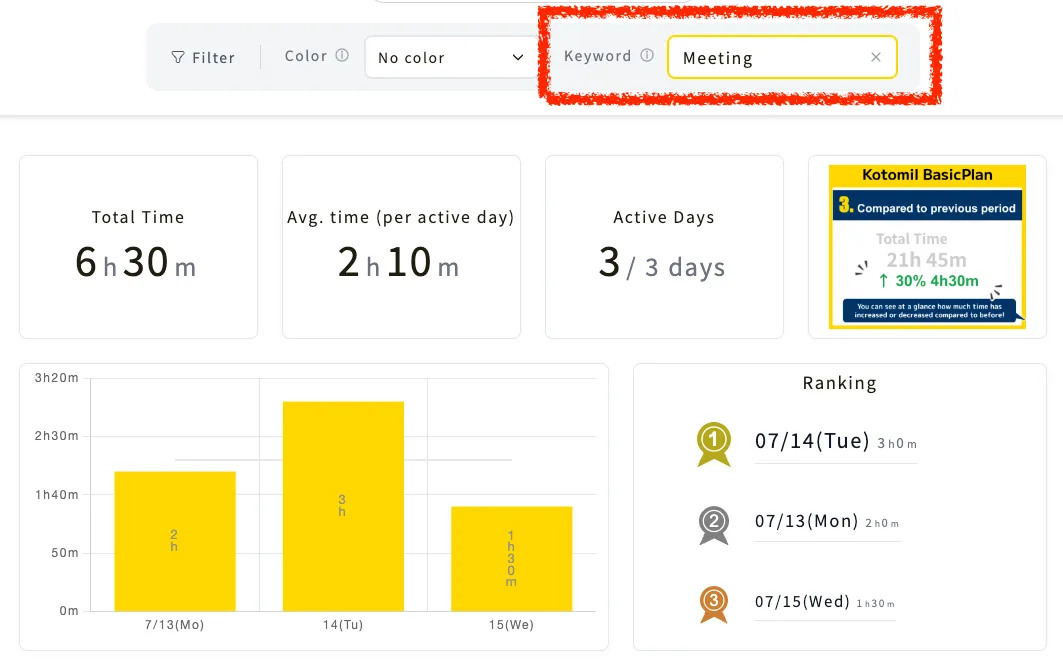
Search for the complete project code when you want the project total. A broad word such as “Web” could include unrelated events. Keep the code identical across the period being reviewed.
3. Keep billing labels separate from work categories
Whether a meeting or revision is chargeable depends on your agreement. Work categories describe what happened; billing labels describe how you have classified that time. On a fixed-fee project, time still affects your return even if you cannot bill an extra hour separately.
If you need billing labels, use distinct tokens such as [CHARGE] and [INCLUDED]. For example: [ACME-WEB] [CHARGE] Meeting — Content review. Settle the meaning of each token before using it in a client report.
Avoid a matching trap: a text search for “billable” can also match “non-billable.” Distinct tokens make the intended group easier to isolate. Always inspect the matching event list before relying on a total.
Likewise, the project total and the meeting total can contain the same events. They are different views of your time, not numbers to add together.
4. Reconcile one week before trusting the month
The following is a fictional example, not a customer result or a measurement from the screenshots.
| Work recorded for [ACME-WEB] | Hours |
|---|---|
| Delivery | 8.0 |
| Meetings | 1.5 |
| Revisions | 2.0 |
| Project administration | 0.5 |
| Total project time | 12.0 |
If you remembered only the eight delivery hours, four hours would be missing from your project review. Those four hours are one-third of the actual total. Check for overlapping events, inconsistent codes, and unfinished plans before concluding that a project overran.