How to Time Block with Google Calendar: Visualize Whether You Used Time as Planned
Time blocking is a time management method where you decide when, what, and how long before the day begins.
Instead of keeping tasks only in a to-do list, you place them directly on your calendar as time blocks. Google Calendar is a practical tool for this because it already shows your meetings, appointments, reminders, and available time.
However, time blocking is not just about creating a clean-looking calendar. In real life, these problems often appear:
You create a block, but another task takes over that time
You overestimate or underestimate how long work will take
Meetings and messages reduce deep work time
Your calendar becomes too full because you forgot breaks and buffer time
You do not know what to change when the day does not go as planned
To make Google Calendar time blocking useful, you need not only a plan, but also a way to review whether you used your time as planned.
This guide explains how to time block with Google Calendar and how to visualize your time allocation with Kotomil.
What Is Time Blocking?
Time blocking means assigning tasks and activities to specific time slots on your calendar.
For example, instead of writing "prepare presentation" in a task list, you create a Google Calendar event such as "10:00-11:30 Presentation Draft." That block makes the time visible and helps you design the day around it.
Common time blocks include:
Deep Work: writing, design, development, planning, analysis
Meetings: team meetings, one-on-ones, sales calls, check-ins
Personal Time: breaks, exercise, commuting, household tasks, rest
When tasks become calendar blocks, you can see not only what you want to do, but also whether it can realistically fit into the day.
Why Google Calendar Works Well for Time Blocking
Google Calendar is easy to use for time blocking because many people already use it for appointments and daily scheduling.
You can start without adding another productivity app. You can also check your blocks from a computer or phone and receive notifications when it is time to switch activities.
Google Calendar helps you:
Reserve focused work time while seeing open spaces in the day
Avoid placing deep work too close to meetings or travel
Use colors to distinguish work, meetings, learning, breaks, and exercise
Notice the next activity through calendar notifications
Review your schedule later as a record of how time was used
The strength of Google Calendar is that it can hold both your planned schedule and actual time record in one place.
How to Time Block in Google Calendar
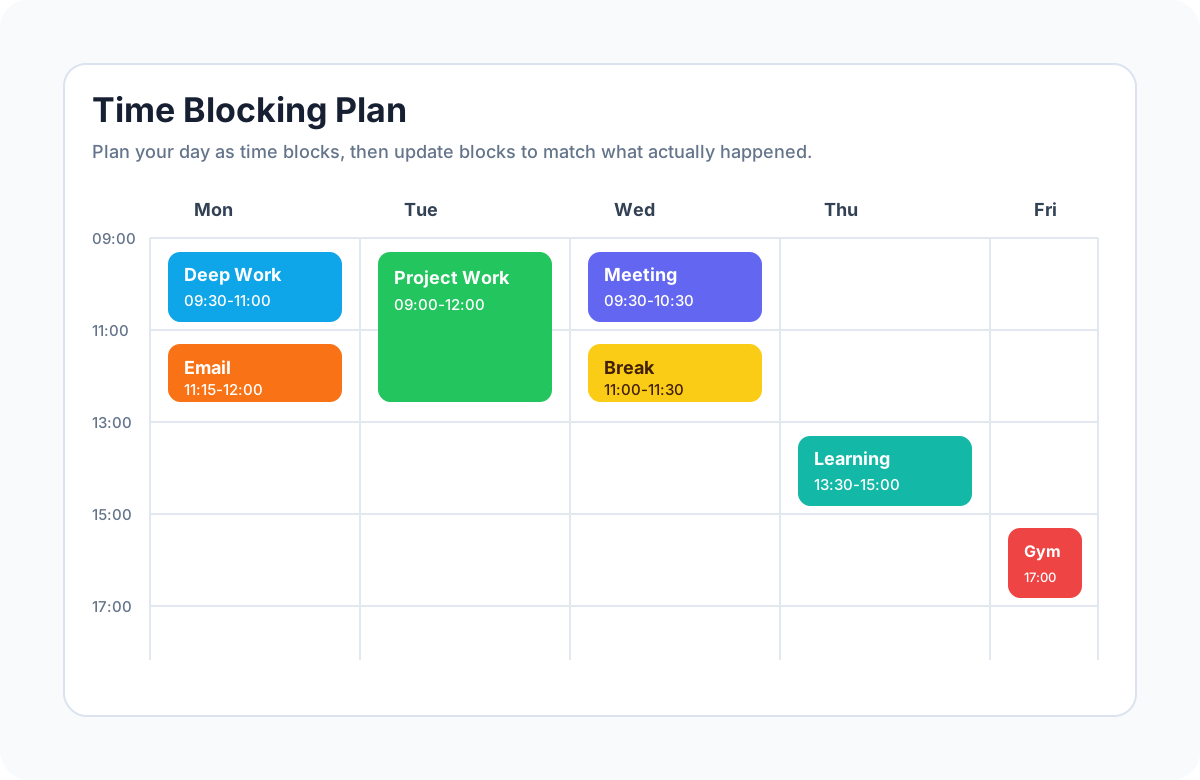
Start by placing the main parts of your day or week on Google Calendar. Do not make the system too detailed at first. A simple structure is easier to maintain.
Reserve deep work: choose periods with fewer interruptions
Batch communication: decide when to check email or chat
Add breaks and buffer: leave space for delays and transitions
Update the calendar at the end of the day: adjust blocks to match what actually happened
Do not treat the first version of your calendar as a perfect schedule. If you did something different, edit the event name or time so the calendar becomes an accurate record.
In time blocking, the most useful data often comes from what actually happened, not only from the plan you created in the morning.
Use Event Names That Are Easy to Review
Consistent event names make Google Calendar time blocking much easier to analyze later.
For example, place a category at the beginning of each event name:
Deep Work Presentation Draft
Deep Work Product Planning
Meeting Weekly Check-in
Communication Email Replies
Learning Reading
Break Lunch
Exercise Gym
If the category names are consistent, you can later review how many hours went into deep work, meetings, communication, learning, breaks, or exercise.
Color coding also helps. For example, deep work can be blue, meetings purple, communication orange, breaks yellow, and exercise red. A clear color system makes your time allocation easier to scan at a glance.
Check Whether You Used Time as Planned
A common mistake with time blocking is feeling finished once the calendar is planned.
In reality, the day often changes. Meetings run long, urgent messages arrive, focus drops, or a task takes longer than expected. That gap between planned time and actual time is where the most useful learning happens.
At the end of the day, review your Google Calendar and make small corrections:
Adjust the length of events to match actual work time
Rename events if you did a different task
Add unexpected interruptions as calendar events
Add more buffer tomorrow if breaks were skipped
Use tasks that took longer than expected to improve future estimates
When you keep the gap between plan and reality visible, time blocking becomes data for improving how you use time, not just a calendar layout.
Visualize Time Blocking Results with Kotomil
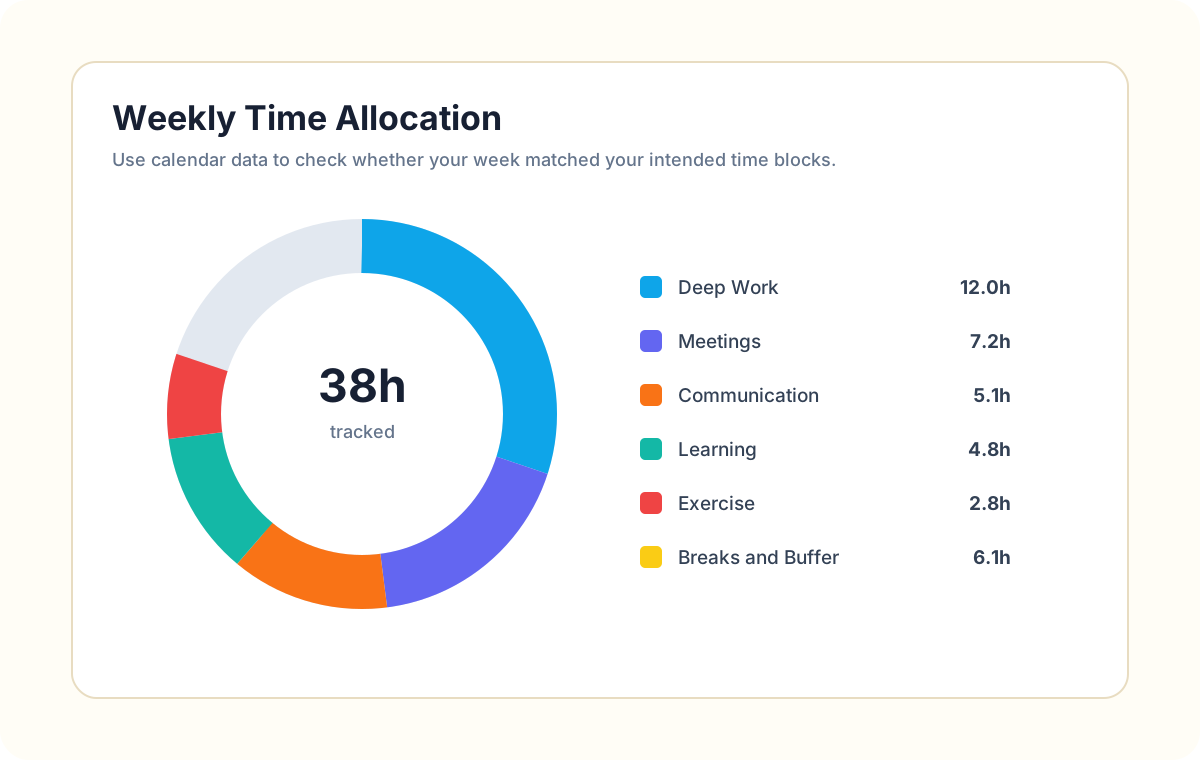
When your time blocks are recorded in Google Calendar, Kotomil can help you visualize how your time was actually allocated.
Kotomil is a calendar analytics app that uses Google Calendar or Outlook Calendar events to show how you spend time across different activities.
If your event names include categories such as Deep Work, Meeting, Communication, Learning, Break, and Exercise, Kotomil can make those patterns easier to review.
How many hours of deep work did you protect this week?
What percentage of your schedule was spent in meetings?
Is communication becoming too fragmented?
Did you actually reserve time for breaks and exercise?
Which activities took time away from your original plan?
Instead of scanning the calendar manually, you can look at charts and quickly understand where time went.
Review Trends by Keyword
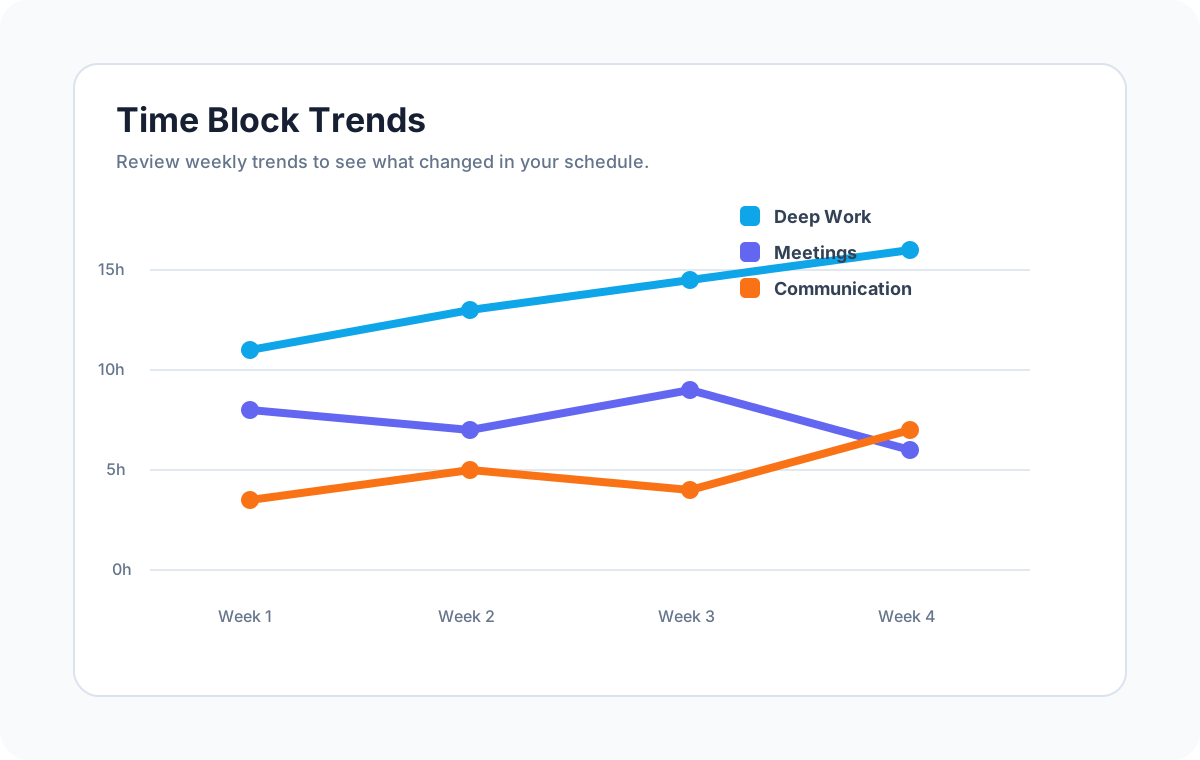
To improve time blocking, it is useful to review not only one day, but also weekly and monthly trends.
Kotomil can aggregate events by keywords included in event names.
Useful keywords include:
Deep Work: check whether focused work time is increasing or decreasing
Meeting: see whether meetings are taking too much of the week
Communication: notice whether email and chat are consuming more time
Learning: confirm whether study time is consistent
Break: check whether rest is actually being scheduled
If you feel less focused recently, trend data can help you see whether deep work decreased, meetings increased, or communication became more fragmented.
What to Review at the End of the Week
If you use Google Calendar for time blocking, a short weekly review makes the system much more valuable.
Check questions like these:
Did you protect the deep work time you planned?
Were meetings and communication heavier than expected?
When did unexpected interruptions happen most often?
Did you include enough breaks and buffer time?
Which tasks took longer than your estimate?
What time blocks should be reserved first next week?
The purpose is not to blame yourself when the schedule changed. The goal is to make next week's time blocks more realistic.
Tips for Making Time Blocking Sustainable
Time blocking can become difficult if you manage every minute too tightly. It works better when the calendar reflects real life and includes room for adjustment.
Start with morning and afternoon blocks instead of a detailed full-day plan
Use 60- to 90-minute blocks for deep work at first
Add 10 to 15 minutes of buffer between important blocks
Track the most important categories first instead of recording everything
When the day changes, update the calendar and use it to improve future estimates
Time blocking is not only a way to follow a schedule. It is also a way to make your time estimates closer to reality.
Summary: Google Calendar Time Blocking Improves When You Review It
Google Calendar time blocking helps you reserve time for deep work, meetings, learning, communication, breaks, and personal routines.
When you use consistent keywords such as Deep Work, Meeting, Communication, Learning, Break, and Exercise, your calendar becomes easier to analyze later.
If the day does not go as planned, updating your Google Calendar with actual time turns the schedule into useful improvement data.
With Kotomil, you can aggregate Google Calendar events and visualize whether your time matched your plan and which activities consumed the most time.
Start by creating one week of time blocks in Google Calendar, then review the results with Kotomil at the end of the week.
See where your time goes from your calendar at a glance📊🔍
With Kotomil, just connect Google Calendar to see how much time you spend on each area in charts and lists. It also helps you find what is making you busy and where your time is becoming unbalanced.