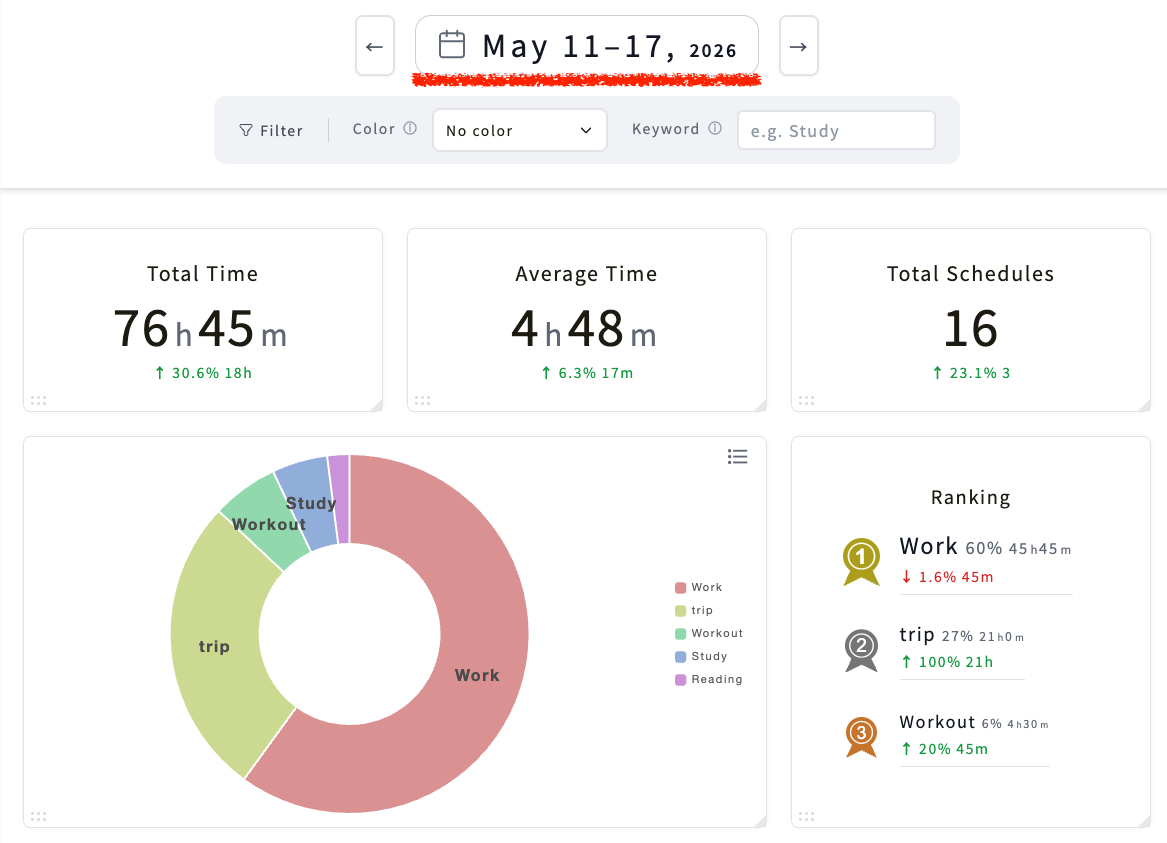
A month view in Google Calendar can show which days looked crowded. It does not automatically explain what consumed the month, whether that time produced the result you wanted, or what should change next.
A useful monthly review turns calendar history into one decision. You might protect more focused work, reduce recurring meetings, add recovery time after travel, or stop underestimating a repeated task.
This guide gives you a simple Google Calendar monthly review process. It focuses on interpretation and next-month planning rather than only calculating totals.
What a calendar-based monthly review can reveal
The activities that received the most time
Categories that increased or decreased from last month
Work that contributed to revenue, delivery, learning, or health
Tasks that repeatedly took longer than expected
Meetings and small requests that fragmented focused work
Time you want to protect before the next month fills up
A single difficult day can be noise. A pattern repeated across four weeks is something you can plan around.
First, make the calendar reflect what happened
Your review will be misleading if canceled events still look completed or a two-hour task actually occupied an entire afternoon. Before analyzing the month, correct the largest differences:
Remove or reschedule work that did not happen
Adjust start and end times for work that ran long
Add major unplanned calls, travel, support, or revisions
Replace vague names such as “Work” with a useful activity label
You do not need perfect minute-level records. Correct the events that changed the shape of a day or repeated often enough to affect the month.
A six-step Google Calendar monthly review
1. Scan the month for pressure points
Open Month view and look for weeks with too many commitments, days without breathing room, and clusters of meetings around a deadline. Also notice empty areas: were they intentional recovery time, or work that was never recorded?
2. Standardize the labels you want to compare
Choose a short vocabulary for recurring activities, such as Client Work, Meetings, Admin, Sales, Learning, Exercise, and Personal. If one month uses “Client call,” “Catch-up,” and “Meeting” for the same activity, decide which label to use going forward.
3. Identify the three largest time categories
Count duration, not only the number of events. Ten short calls can consume the same time as one deep-work block, but their effect on attention can be very different. Start with the three categories that occupied the most time.
4. Compare the result with the previous month
Ask whether each increase was intentional. More delivery time for a new project may be expected. More revisions, status meetings, or inbox time may indicate a scope or process problem. A decrease can also be a warning if exercise, sleep, sales, or learning disappeared during a busy period.
5. Connect time to an outcome
The largest category is not automatically the most valuable. Choose the time that contributed most clearly to a result you care about: completed client work, revenue, a launched product, a learning milestone, or better health.
6. Change one event in next month’s calendar
Turn the review into a calendar action instead of a vague intention:
Reserve Tuesday mornings for focused delivery work
Batch email and chat at 11:30 a.m. and 4:30 p.m.
Add a 30-minute monthly review on the final working day
Protect a full day off before accepting another deadline
Monthly review questions worth repeating
What received the most time this month?
Which increase was intentional, and which was not?
What work created the strongest result?
What repeatedly interrupted or extended planned work?
What should be reduced, batched, delegated, or stopped?
What deserves a protected place in next month’s calendar?
Use the same three or four questions every month. Consistency makes change easier to detect and keeps the review short.
Month view and Time Insights are useful—but different
Google Calendar lets you switch between day, week, schedule, and month views. Month view is useful for spotting density and sequence, but it is still a visual schedule rather than a complete category report.
Eligible work or school accounts may also have Time Insights. Google explains that its meeting calculations apply to qualifying meetings with other guests, while solo work and many personal activities do not count under the same rules.
If you want to review client delivery, study, exercise, administration, and personal time together, use consistent event labels and analyze the broader event record.
Review monthly time allocation with Kotomil
Kotomil connects to Google Calendar and lets you select a date range or filter by a keyword. A monthly workflow can look like this:
Select the first through the last day of the month
Review the largest shares of your calendar time
Filter labels such as Meetings, Client Work, Admin, or Exercise
Run the same view for the previous month
Add one specific change to next month’s Google Calendar
A monthly review does not need to become a report. Capture one line for the fact, one for the interpretation, and one for the change:
Fact: Meeting time increased by six hours. Interpretation: Delivery work was fragmented across four afternoons. Change: Keep Wednesday afternoon meeting-free next month.
A modest change that reaches the calendar is more useful than a detailed analysis you never revisit.
Summary: Turn calendar history into next month’s schedule
To review a month with Google Calendar, first correct the largest gaps between planned and actual time. Then identify your biggest categories, compare them with the previous month, and connect time to outcomes.
Finish by changing one event in next month’s calendar. Kotomil can help you aggregate the calendar by period and keyword so the review moves from “I was busy” to a specific, repeatable decision.
See where your time goes from your calendar at a glance📊🔍
With Kotomil, just connect Google Calendar to see how much time you spend on each area in charts and lists. It also helps you find what is making you busy and where your time is becoming unbalanced.